Exporting Data from SNMP Provider in the Workbench
The SNMP provider in the Workbench offers the flexibility of exporting data from your configuration database.
To Export Data:
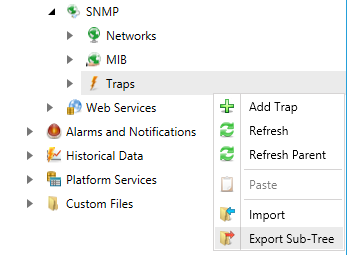
Right-click on the item from which you wish to export data. This can be from the database, network, or folder level of the SNMP provider tree explorer in the Workbench. Select Export Sub-Tree from the menu.
Exporting from the SNMP Provider in the Workbench
-OR-
Select the item in the SNMP provider tree control from which you wish to export data, then click on the Export Sub-Tree button, shown below, in the Import/Export section of the Home ribbon in the Workbench.
Export Sub-Tree Button

This opens the Export Options window, shown below.
Export Options Window
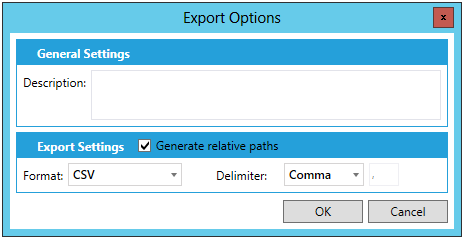
In the General Settings section of the window, enter a Description for the exported data in the text entry field.
In the Export Settings section, you can opt to Generate relative paths via the checkbox. Use the Format pulldown menu to decide from either CSV, Excel workbook or XML. Use the Delimiter pulldown to decide from either Comma, Tab or Other (if selected, you will be able to enter a delimiter symbol in the activated text entry field).
Click OK. The export process begins. At the same time, the Export task can be seen in the Recent Tasks pane of the Workbench, in the right side of the window.
Export Project in Recent Tasks Pane
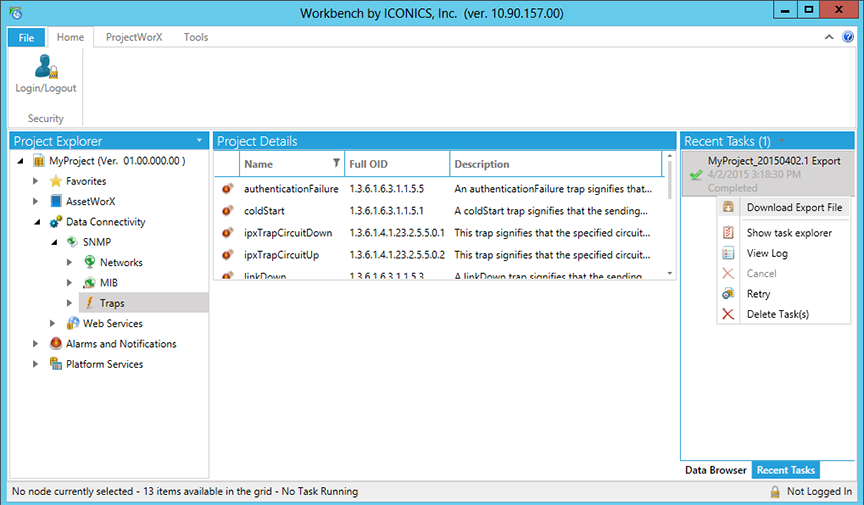
Right-clicking on the task shows additional options, including Download Export File, Show task explorer, View Log, Cancel, Retry, and Delete Task(s).
Right-click Options for Import Task
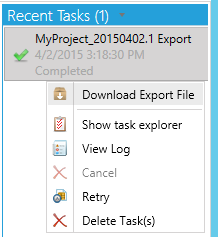
Clicking Download Export File opens a file explorer, where you can select where to save your Export file in the file format you selected in Step 2 above. Click Save when you have selected your preferred location.
See also: