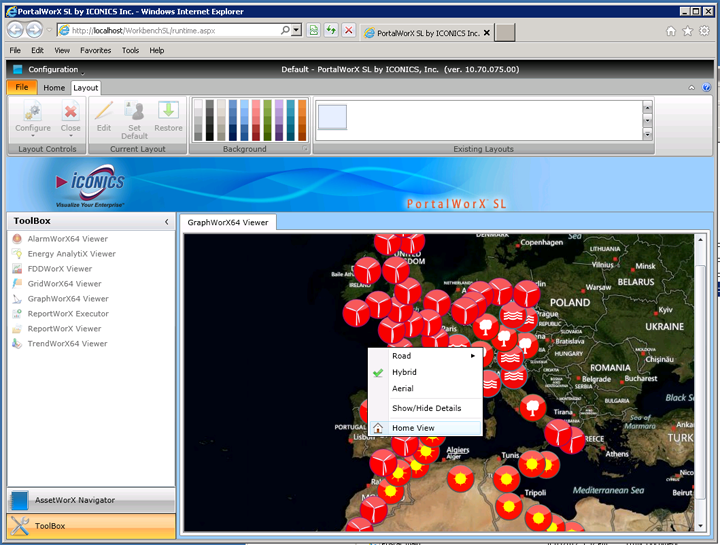
ICONICS' GraphWorX64 Viewer, shown below, allows you to visualize important operations data in an interactive, real-time display via a portal.
GraphWorX64 Viewer in PortalWorX-SL
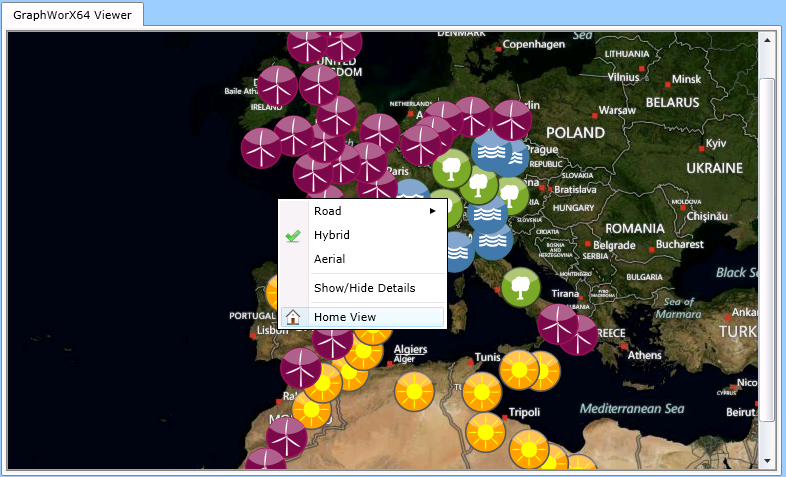
When you right-click inside the GraphWorX64 Viewer, you are able to select from the options that were originally set in GraphWorX64 and then saved as part of that specific GraphWorX64 Silverlight display. These may be different from display to display. For instance, in our example below, the display uses a map as part of the data visualization. Right-clicking within the window allows users to configure options specific to a map display such as Road, Hybrid, Aerial, Show/Hide Details, etc.
Right-Click Options in GraphWorX64 Viewer - Example 1
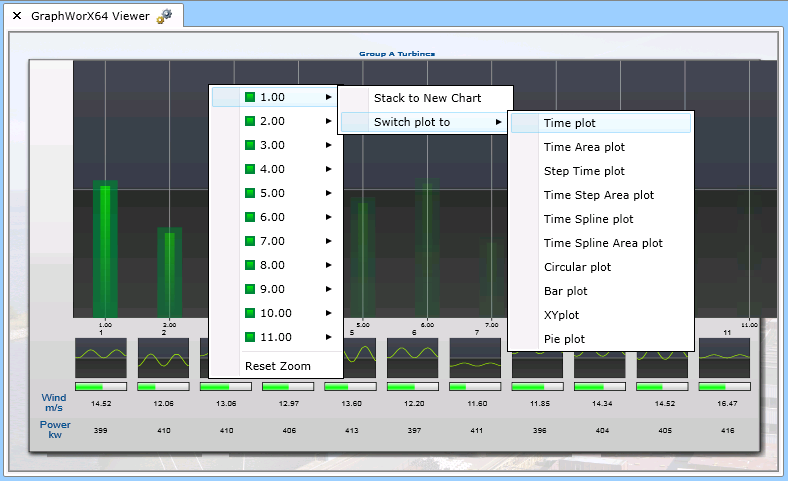
In a different GraphWorX64 Silverlight display file, one in which the data is more chart-oriented, right-clicking the window brings up an entirely different set of options, as shown below.
Right-Click Options in GraphWorX64 Viewer - Example 2
Of course, in most cases, left-clicking within any GraphWorX64 display in Runtime is meant to allow the user to directly interact with the visual elements within that display.
See Also: